
A good use case for SpriteKit is a zoomable canvas that users can navigate and interact with. For that, we need a camera system. In this part, I explore the shortcomings of SpriteKit SKCameraNode.
One of the best decisions I made in SpriteKit was to let go of SKCameraNode and implement a camera by transforming the content node directly. I made SpriteKit Inertial Camera, a custom SKCameraNode subclass with many options and features, but I moved away from it. Below are my findings.
SKCameraNode
SKCameraNode was not part of SpriteKit initial release. It was introduced later in 2015 and makes camera setup straightforward:
/// Create an instance
let cameraNode = SKCameraNode()

/// Add it to the scene
scene.addChild(cameraNode)

/// Assign it the dedicated camera property of SKScene
scene.camera = cameraNode

/// Move camera to the left
cameraNode.position.x -= 200

/// Scale down to zoom in
/// Scale up to zoom out
cameraNode.setScale(0.5) /// 200% zoom
cameraNode.setScale(2) /// 50% zoom
But SKCameraNode comes with a set of opinions that make some things simpler and others much more complicated. Some of the complications are related to scaling nodes and can be mitigated as discussed in Scaling Physics in SpriteKit. But harder limitations appear when we combine SKCameraNode with Core Image filters, scene snapshots, and other processing of the rendered scene.
Core Image Filters
We can apply Core Image filters to a SpriteKit scene using scene.filter. Here's a demo using SKCameraNode with Gaussian Blur and Glass Lozenge filters:
Below is the same demo, but using a manual camera setup:
scene.filter is a screen-space effect that is applied to the rendered scene texture. When SKCameraNode is scaled, a larger or smaller area of the scene is mapped into view, while scene.size remains unchanged. This is likely why only a part of the scene is visible post-process when the camera is zoomed out.
When using a manual camera setup, the scene size and scene-to-view mapping remain constant, therefore screen-space filters run without issues.
SKEffectNode
What if we use a dedicated SKEffectNode as the content's parent and apply filters on it while using SKCameraNode? That setup would be different from applying filters to the scene directly:
-
The effect will be in the
SKEffectNodespace, not screen space. -
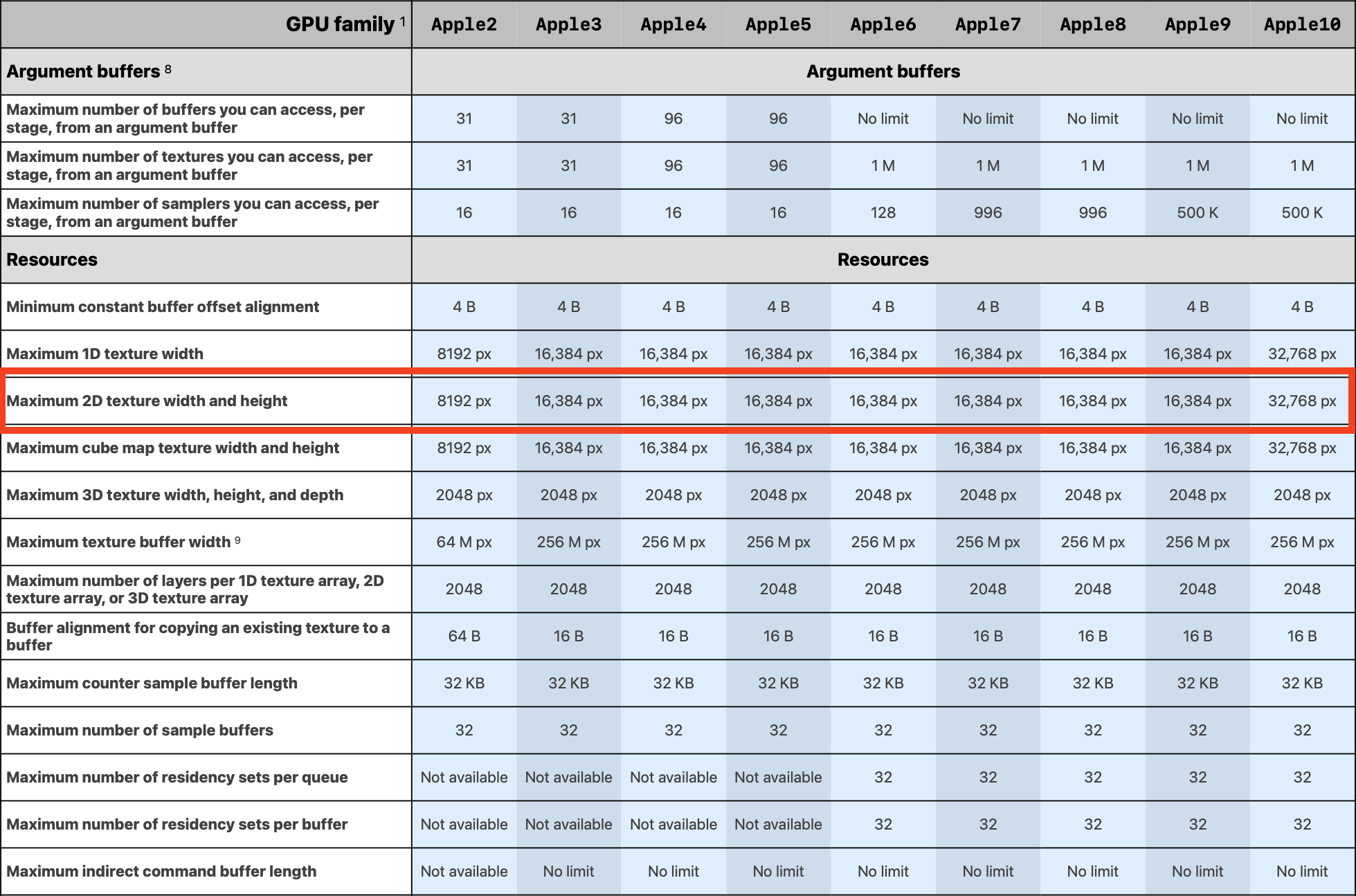
The effect node's texture size depends on the bounds of its children, therefore spread-out content would produce larger textures to process, eventually reaching Metal texture size limit (PDF) with both camera setups.
If a texture exceeds the limit of the GPU, the app will crash with an error like this, which is expected behavior:
-[MTLTextureDescriptorInternal validateWithDevice:]:1421: failed assertion `Texture Descriptor Validation
MTLTextureDescriptor has width (16386) greater than the maximum allowed size of 16384.
MTLTextureDescriptor has height (16386) greater than the maximum allowed size of 16384.
' Media unavailable: spritekit-manual-camera/Metal-texture-limit.png
Scene Snapshot
A useful feature of SpriteKit is the ability to render a node, or a region of it, into a texture with view.texture(from:crop:). That method is very handy for many use cases such as image capture or multi-pass rendering inside SKView.
In the videos below, we capture a region of the root node and display the resulting texture in the top-right corner, like a mini-map. The difference between the two camera setups becomes clear as we zoom and rotate:
SKCameraNode changes how the scene and the view relate to each other. When the camera rotates, the snapshot remains straight up.Snapshotting is predictable with a manual camera setup. Given a region in view and a display scale, the texture stays the same size as we pan, zoom, and rotate, because view and scene maintain the same relative size while the content is scaled "inside" the scene.
With SKCameraNode, zooming out makes the same view-crop cover a larger region in scene space, so the snapshot grows. In this test on iPhone 13, a large texture such as 10000×10000 pixels hit the app's memory limit (~2 GB) before reaching the texture size limit:
Thread 11: EXC_RESOURCE (RESOURCE_TYPE_MEMORY: high watermark memory limit exceeded) (limit=2098 MB)Rotation adds another complication: the CGRect passed to view.texture(from:crop:) has no rotation property. We convert the four view-crop corners into scene coordinates, then use their minimum and maximum x and y values to define the rectangle to capture. The dashed white outline in the video shows that rectangle. When the camera is rotated, it includes extra content around the yellow view crop, which changes the aspect ratio of the requested crop.
One way to capture exactly what the rotated camera sees is to temporarily apply the inverse camera transforms to the content node, then restore them after capture, which is essentially implementing a manual camera.
Manual Camera
For a zoomable canvas in SpriteKit, I prefer to keep the scene frame stable and transform the content directly. In the next part, we will build that manual camera setup, including panning, zooming, and rotation.
Code
Download the full code of the demo scene from GitHub Gists, and run all the experiments live on Mac or iOS.
Links
-
Apple Documentation, SKCameraNode.
-
Achraf Kassioui, SpriteKit Inertial Camera, 2024.
-
Achraf Kassioui, Scaling Physics in SpriteKit, 2024.
-
Apple Documentation, Gaussian Blur.
-
Apple Documentation Archive, Glass Lozenge.
-
Apple Documentation, SKEffectNode.
-
Apple, Metal Feature Set Tables (PDF).
-
Apple Documentation, Creating a New Node By Rendering To a Texture.
-
Apple Documentation, contentScaleFactor.